What’s new
New in Shelf Help
Last updated 2026-10-25
Each new thing you can do, newest first, with a picture of how it works.
-
Search sorts what it finds
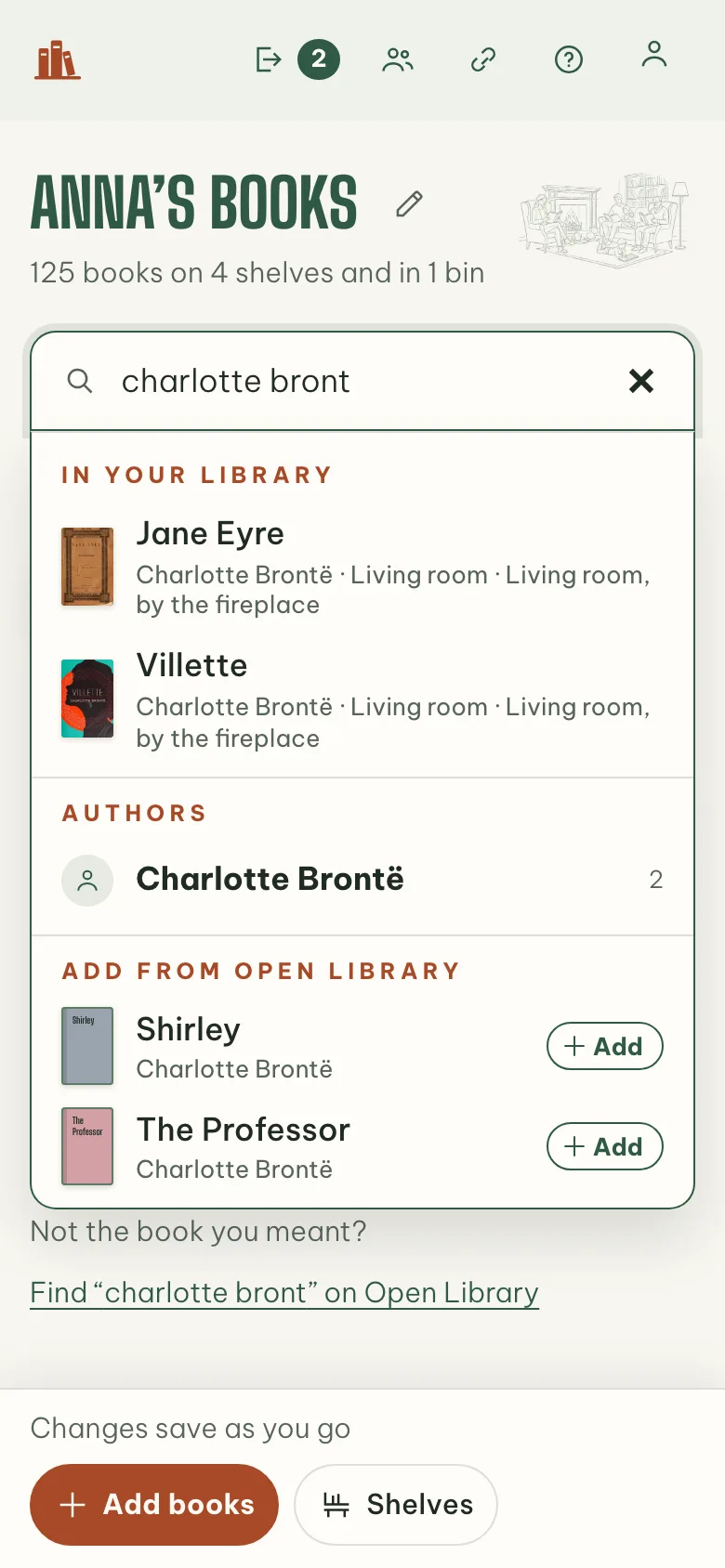
Type in the search box and matches come in groups: your books with their covers and where they sit, then authors, topics, and shelves. Don’t have a book yet? Books from Open Library show at the bottom. Tap Add and its details fill in.
 1
2
3
1
2
3
- Your books, with covers
- Authors in their group
- Add one you’re missing
-
Rename a shelf right where you see it
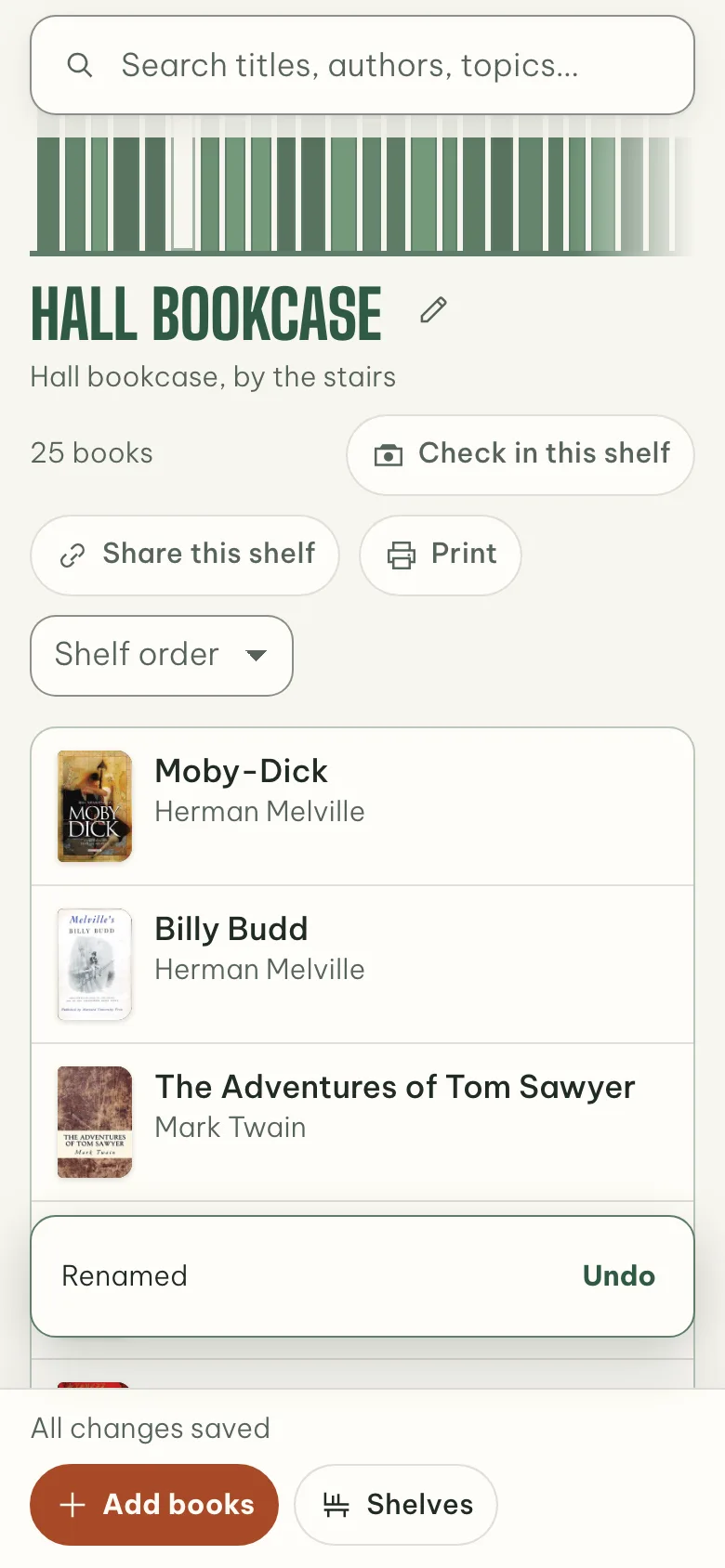
Open a shelf or bin and tap the pencil by its name. Type the new name and press Save. Changed your mind? Tap Undo.
 1
2
1
2
- Tap the pencil
- Changed your mind? Undo
-
Shelf photos find more books
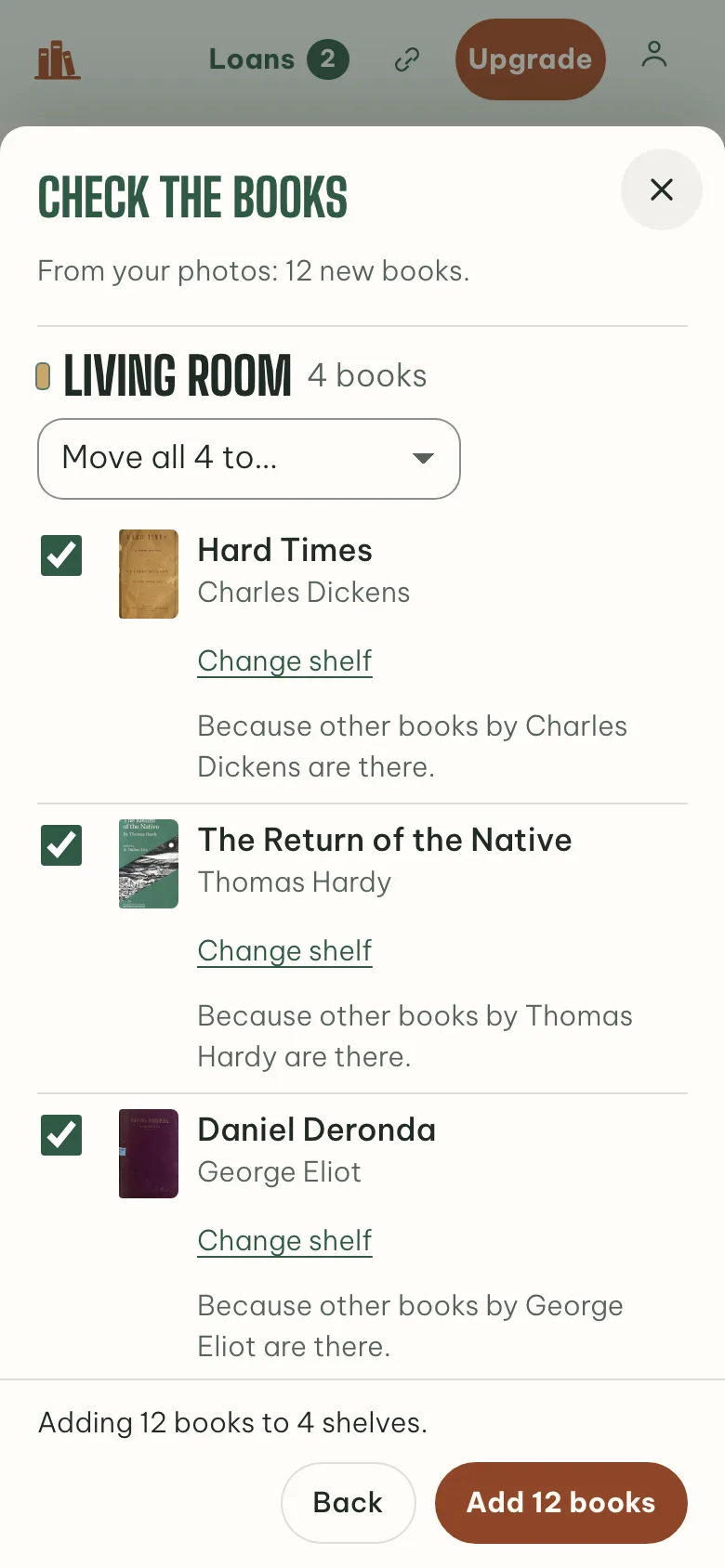
A photo of a shelf now finds more of its books. In our tests on two shelves, it found 33 of 38 books, up from 22. A spine it can’t read shows with its picture, so you can name it.
 1
2
1
2
- One photo, whole shelf
- Add them all at once
-
Find a book to add, faster
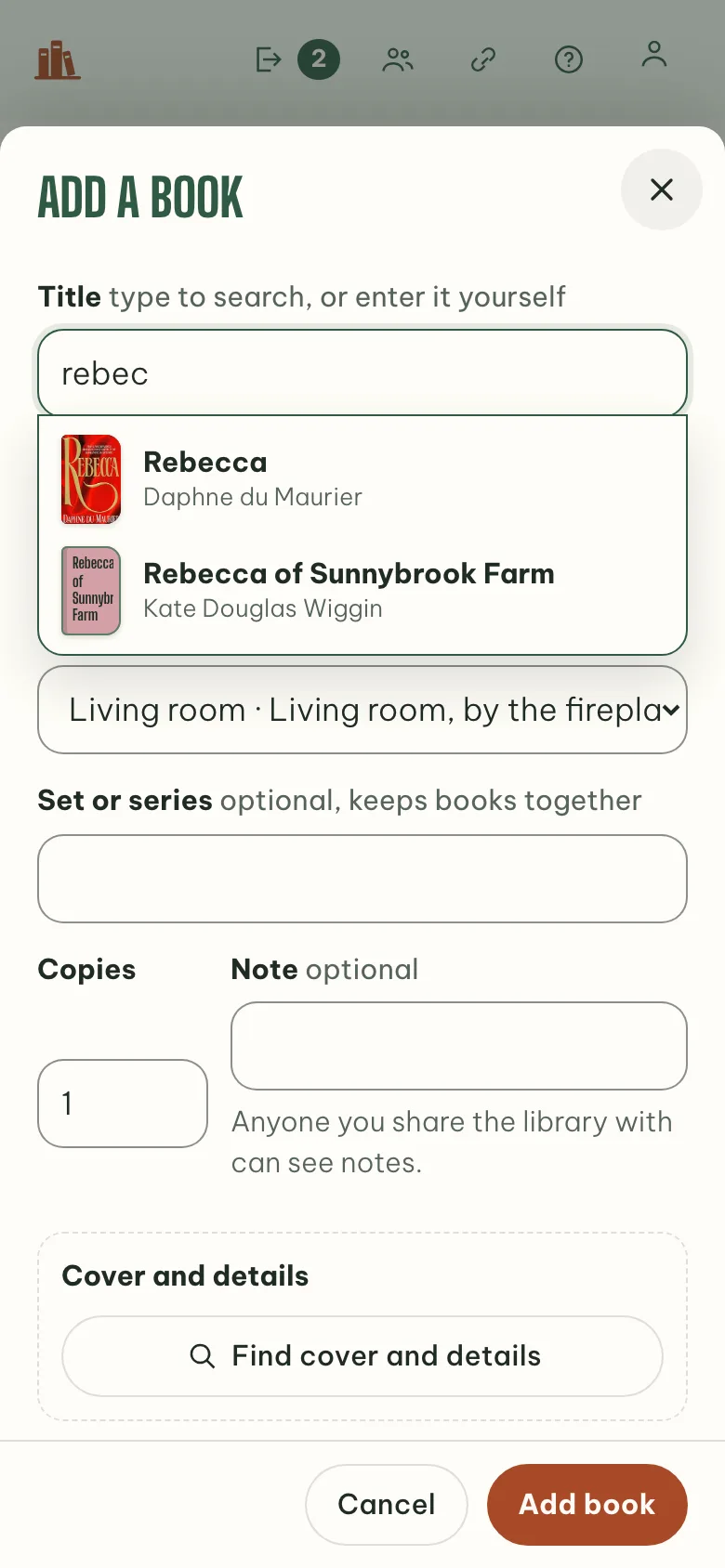
In Add books, Search for a book shows matches as you type. Tap one, and its cover and details fill in. The panel stays open while you work in it.
 1
2
1
2
- Start typing a title
- Tap a match
-
Tick off your books as a list
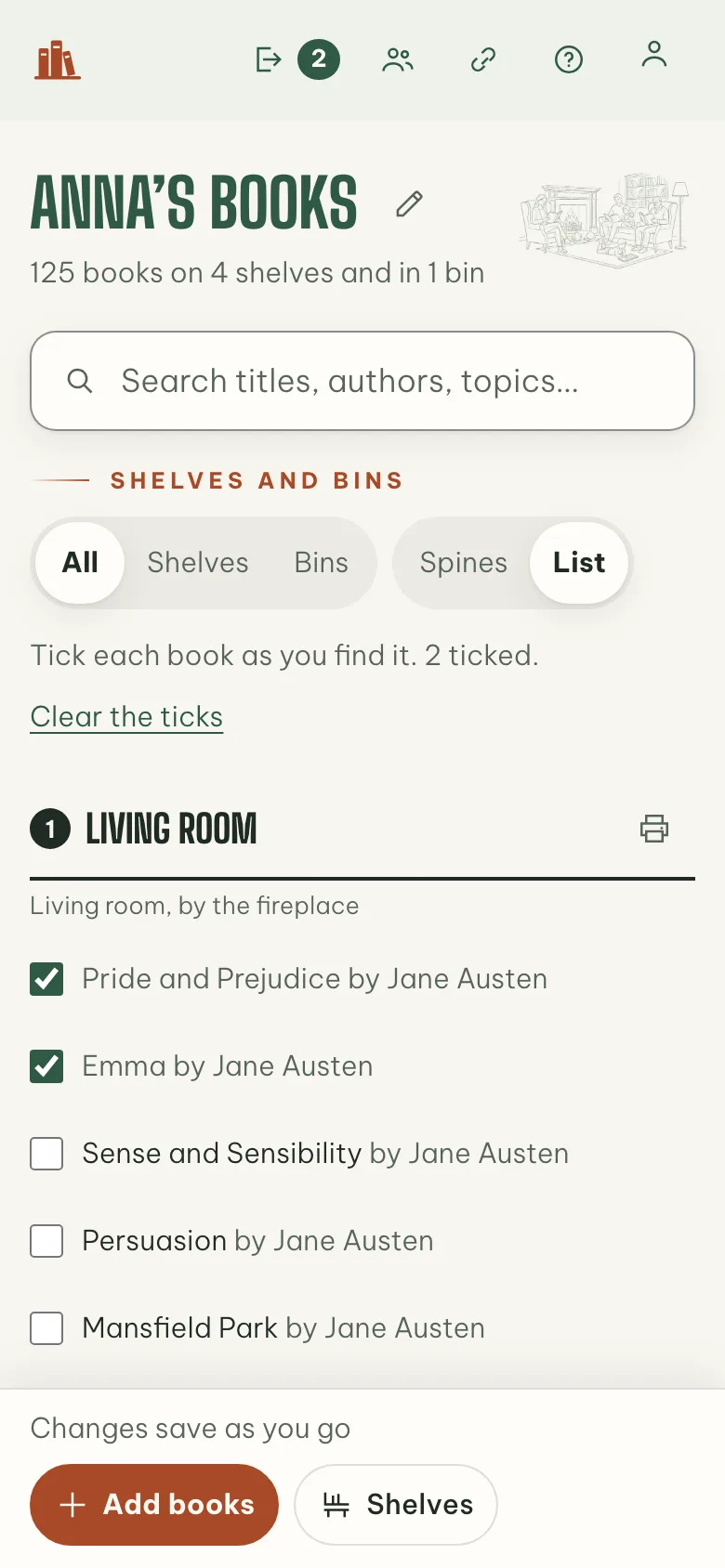
On your library’s first page, switch from Spines to List. Each shelf shows as a checklist, so you can tick each book as you find it. Each shelf has its own print button too.
 1
2
3
1
2
3
- Spines or a list
- Tick each book off
- Print one shelf
-
Print just the shelves you want
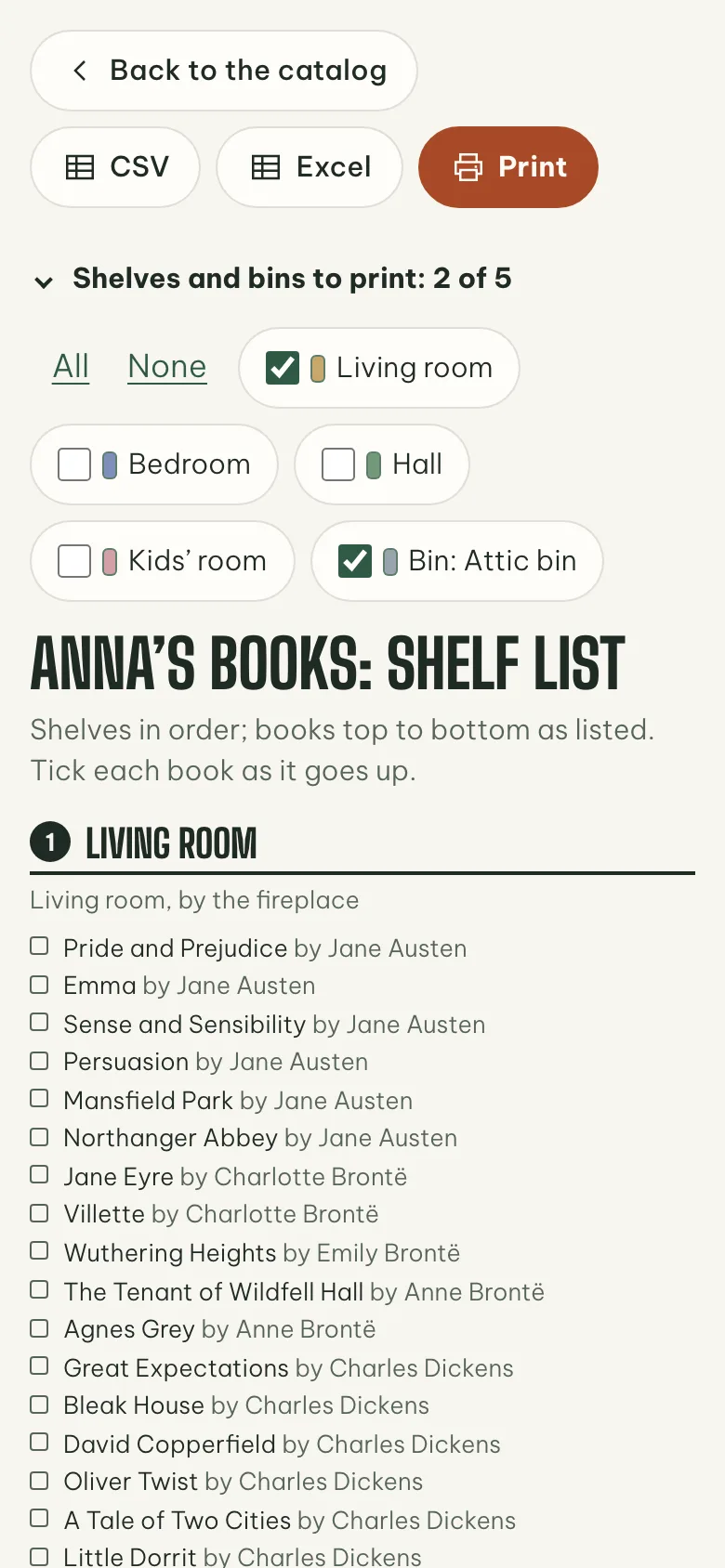
The printable shelf list lets you pick the shelves and bins to show. Print only those, or download them for Excel or as a CSV file.
 1
2
3
1
2
3
- Pick the shelves to print
- Download for Excel
- Print it
-
Ask us from inside the app
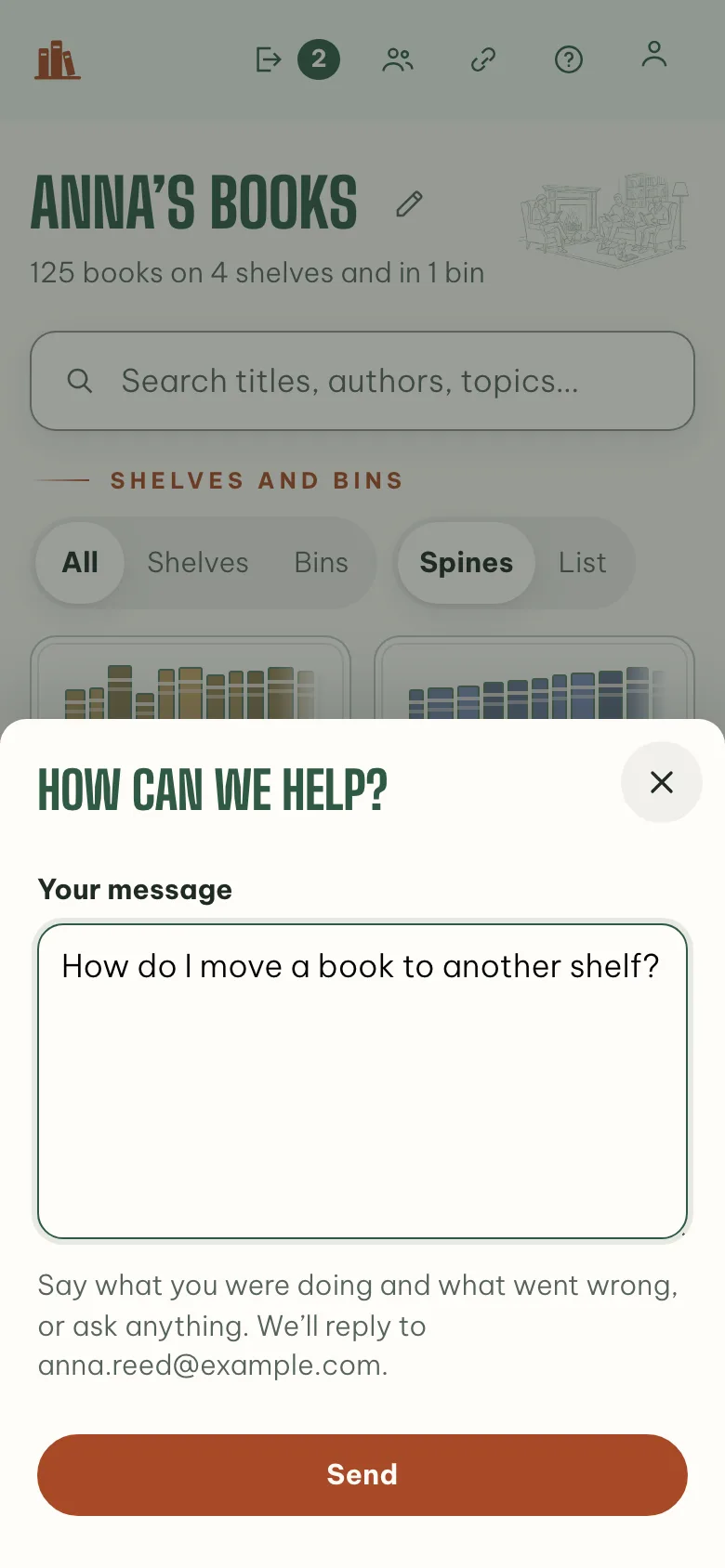
Tap Help, the question mark at the top of the page. Write your question and press Send, and we’ll reply by email.
 1
2
1
2
- Ask us anything
- We reply by email
-
Your family can help keep your library
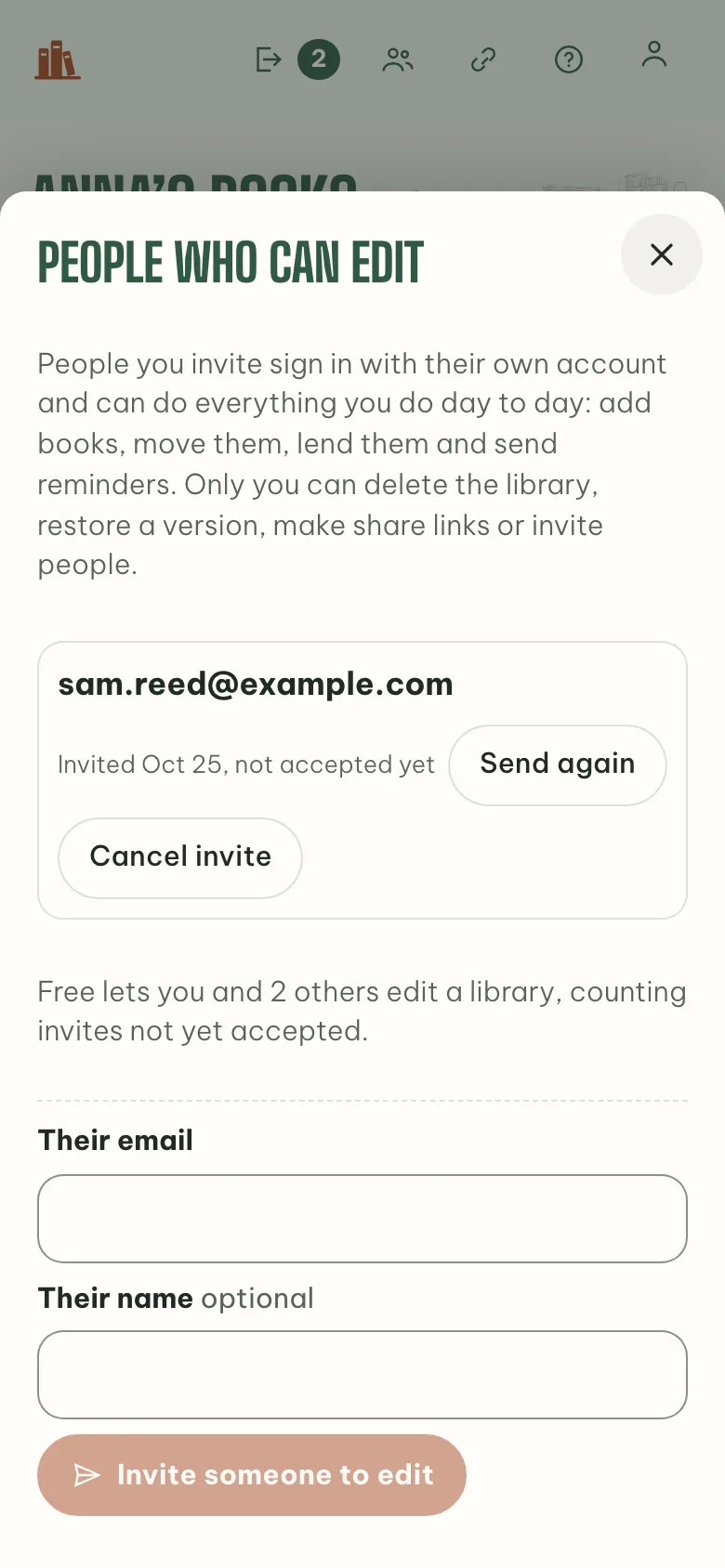
Invite people by email to edit your library. They sign in with their own account to add, move and lend books. Free lets you and 2 others edit; Plus, any number.
 1
2
1
2
- Invited by email
- Free: you and 2 others
-
Ideas for what to read next
Beside your books, You might like suggests books from Open Library. The ideas come from the authors and topics you already own.
-
Shelf Help is open to everyone
Anyone can create a free account, with a code sent by email or with Google. Free holds up to 200 books, and shelf photos are on every plan.